.jpg)


















Your Coworker Finishes in 10 Seconds What Takes You 2 Hours. It’s Macros in Excel







Quick Summary
A Macro in Excel is a recorded sequence of steps that automates repetitive tasks. Instead of manually formatting, filtering, or entering data every time, a macro runs it all with a single click or keyboard shortcut, saving time, reducing errors, and making you dramatically more productive at work.
You’re Wasting Hours on Excel, and You Don’t Even Know It
Imagine this: Every Monday morning, your colleague spends two hours filtering employee data by department, copying it, formatting it, and sending it across. You do the same thing in 10 seconds with one click.
That’s not magic. That’s Macros in Excel.
Table of Contents
What Exactly Is a Macro in Excel?
A Macro is basically Excel’s memory. You perform a task once, Excel records every step, and from that point on, it repeats that exact task whenever you want.
Think of it like recording a voice note. You speak once, and it plays back exactly what you said every single time.
In Excel terms: you click Record, do your task (filter data, apply formatting, run formulas), click Stop, and your Macro is saved. Done.
Technical note: Macros are stored as VBA (Visual Basic for Applications) code behind the scenes, but you don’t need to learn coding to create basic macros. Excel records your actions automatically.
Why Should Students and Job Seekers Care About Macros?
Let’s be direct. Excel is everywhere. Finance, HR, operations, marketing, logistics, every industry uses it. But knowing basic Excel is table stakes now.
What gets you hired and promoted is knowing Advanced Excel, and Macros sit right at the heart of it.
Here’s what employers actually look for:
- Can you handle large datasets without slowing down?
- Can you reduce manual errors in reporting?
- Can you build tools that non-technical teammates can use easily?
Macros answer all three. That’s why Advanced Excel with Macros is consistently listed in job descriptions across MNCs, startups, and government organizations alike.

Advanced Uses of Macro
Macros are recordings of a sequence of events that can automate tasks. They are a great way to save time since they perform many events with a single click of your mouse. Macros have many uses. If there is a task that you do repeatedly, you can save yourself time by creating a macro.
Let’s walk through a real-world example, exactly the kind taught at ICA Edu Skills.
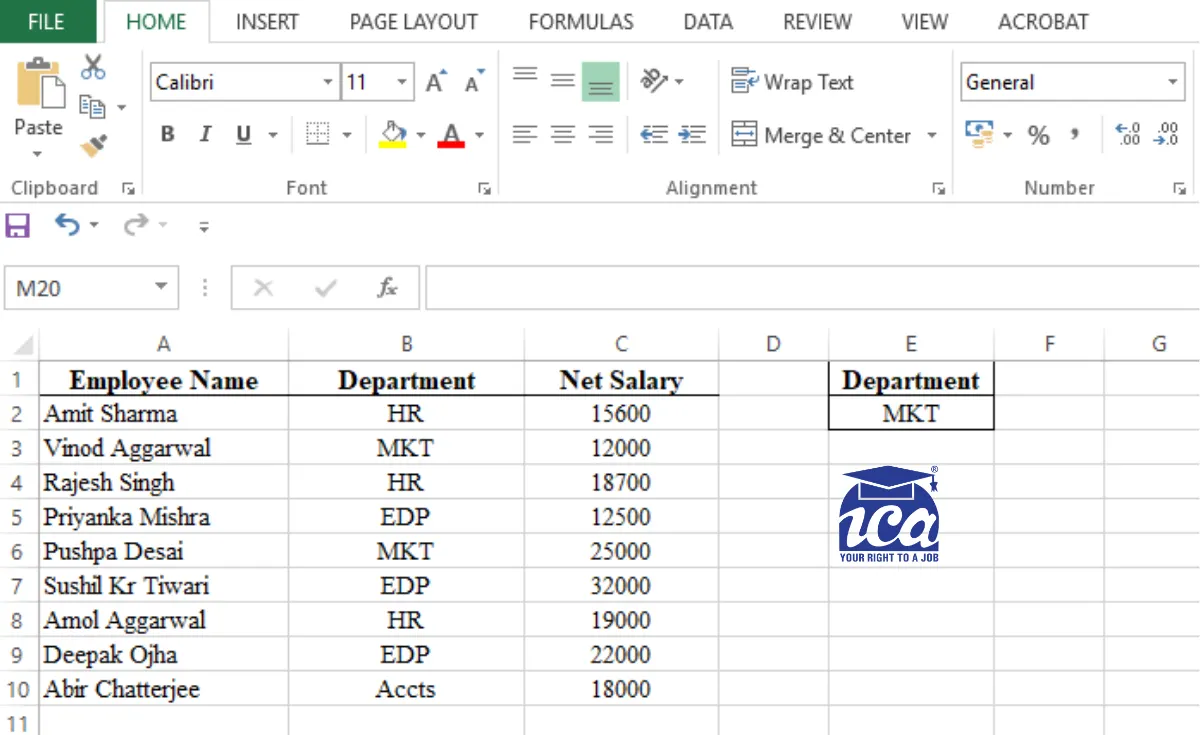
If you have a list of records contained in a range of cells it is possible to extract all records that meet a specified set of criteria and place them elsewhere in your workbook. For example, we have a database with the fields Employee Names, Department & Net Salary and we want to find everyone who works for a particular Department. To do this task reputedly Macro is a much smarter alternative to sorting, resorting, copying and pasting the data or perform Advanced Filter.
If the filtering is an infrequent exercise it can be achieved using the Excel menu options but if the task is regularly required, it may be worth record a short macro program to simplify the process.
A macro can be used to automate the filtering process – identifying a List range, pre-programmed with the Criteria and the Copy to ranges. The results can be on a different worksheet than the original data.
To do this see the database first:
Tip
Here we convert the database into a table to make it dynamic. So now onwards, we add any data in that particular table, it will update the Macro.
1) Go to View Tab → Click View Macros (or press Alt+F8)
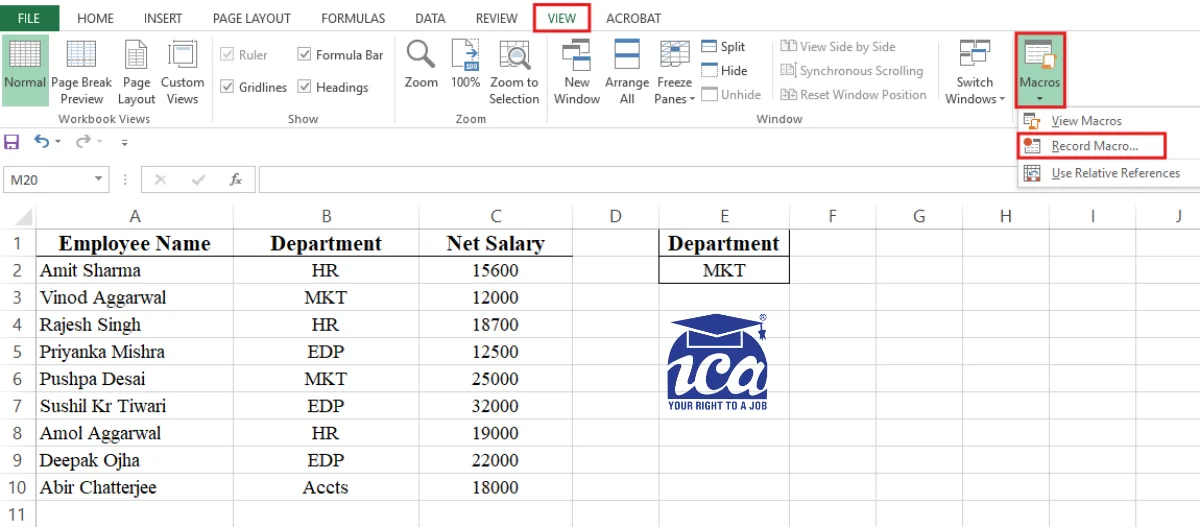
2) The Record Macro dialog box will appear
3) Type a macro name to replace the default Macro1 name. A good name is EmployeeDetails
4) Assign this macro to the shortcut key <Ctrl+Shift+P> by holding shift key and press ‘P’ from the keyboard
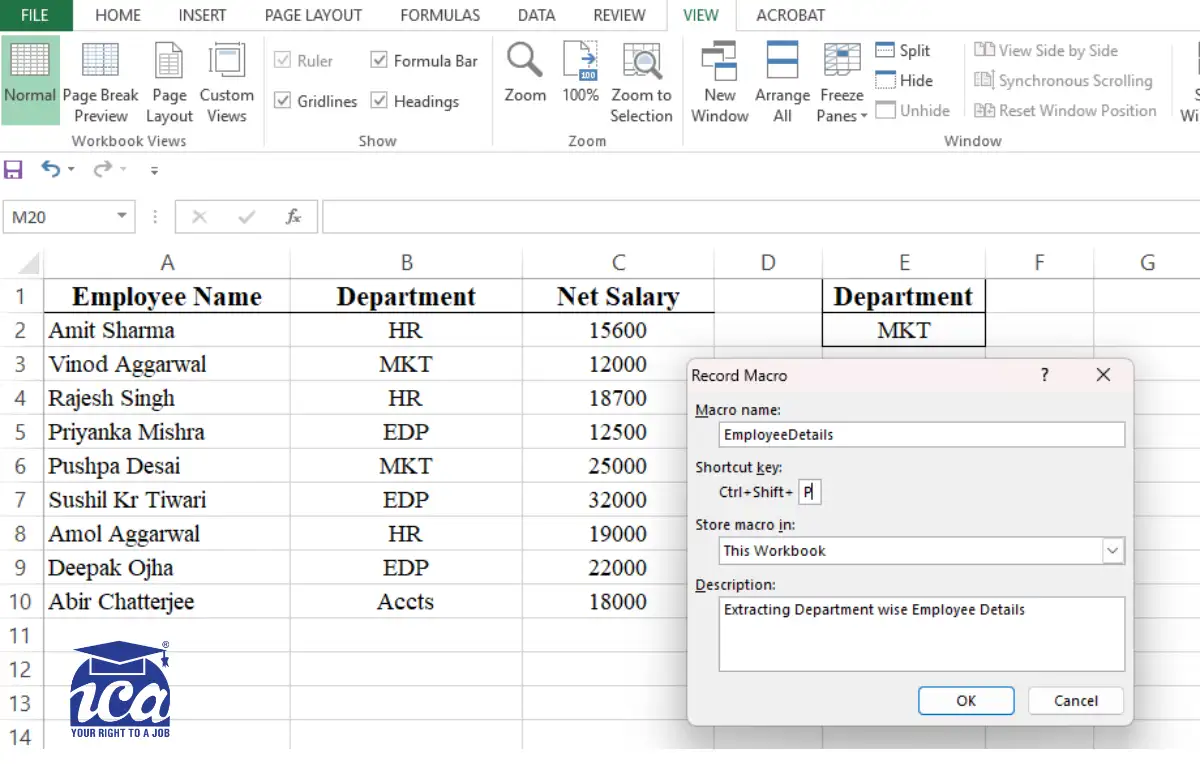
5) Click OK button to close the Record Macro dialog box
6) Select range E4:G100 [Depends on data] and clear all so that it will always clear the existing data first
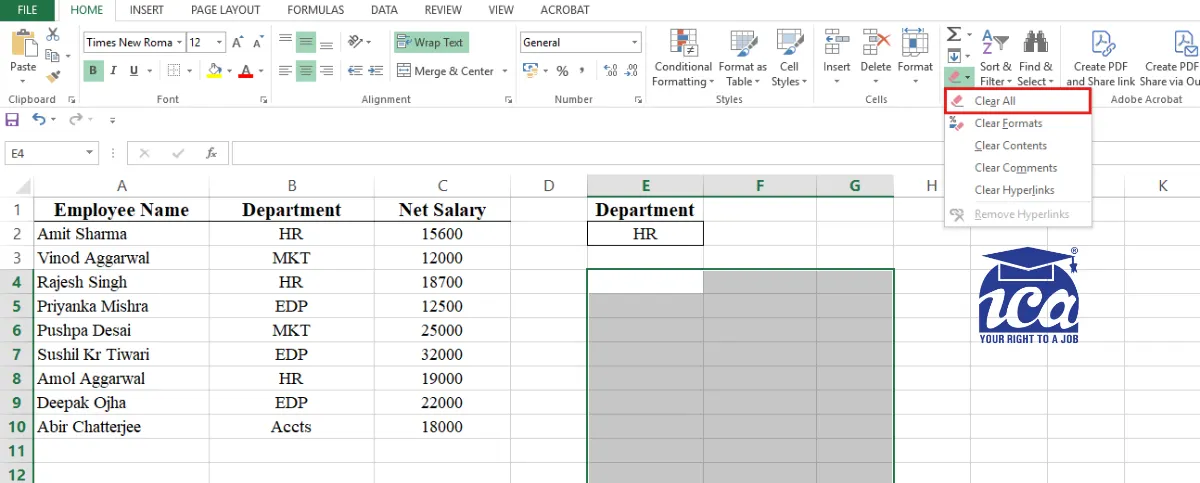
7) Now go to Data Tab Click Advanced button under Sort & Filter group to display Advanced Filter dialog box
8) Choose Copy to another location. In List range box: Select cell range Table1, In Criteria range box: Select cell E1:E2, In Copy to box: Select cell range E4:G4
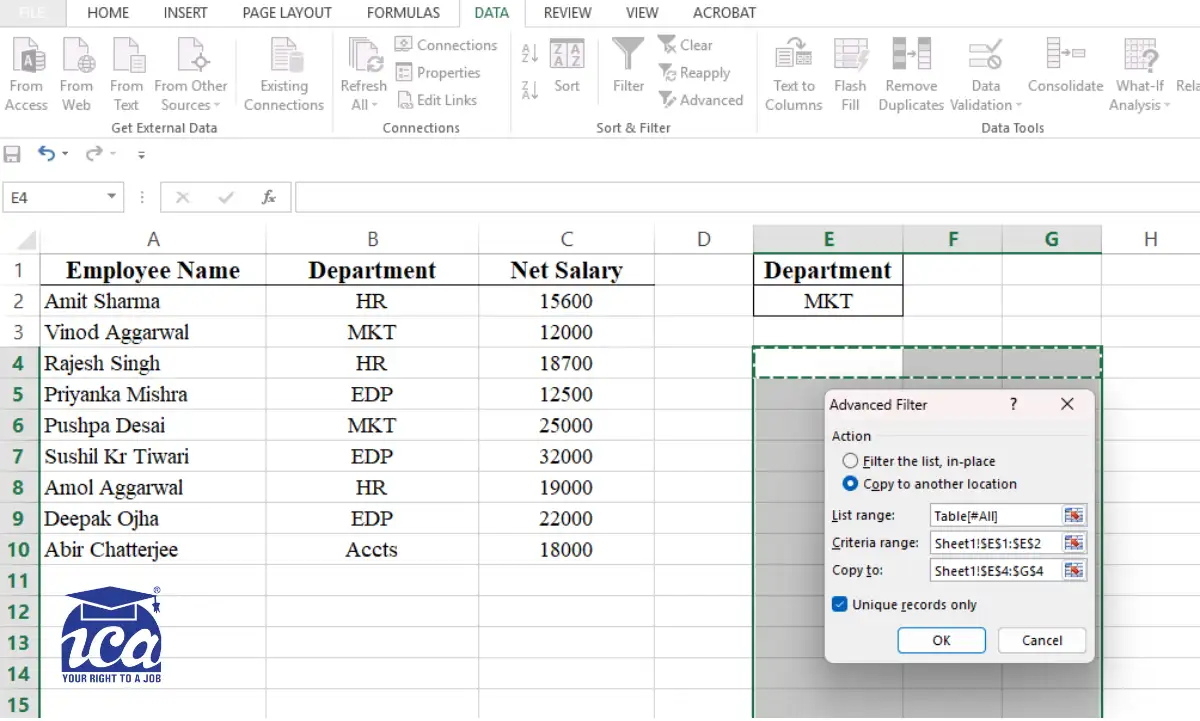
9) Click OK button to extract the records in the selected cell range. (You can apply formatting based on requirement, like – best fit & apply border on specific location etc.)
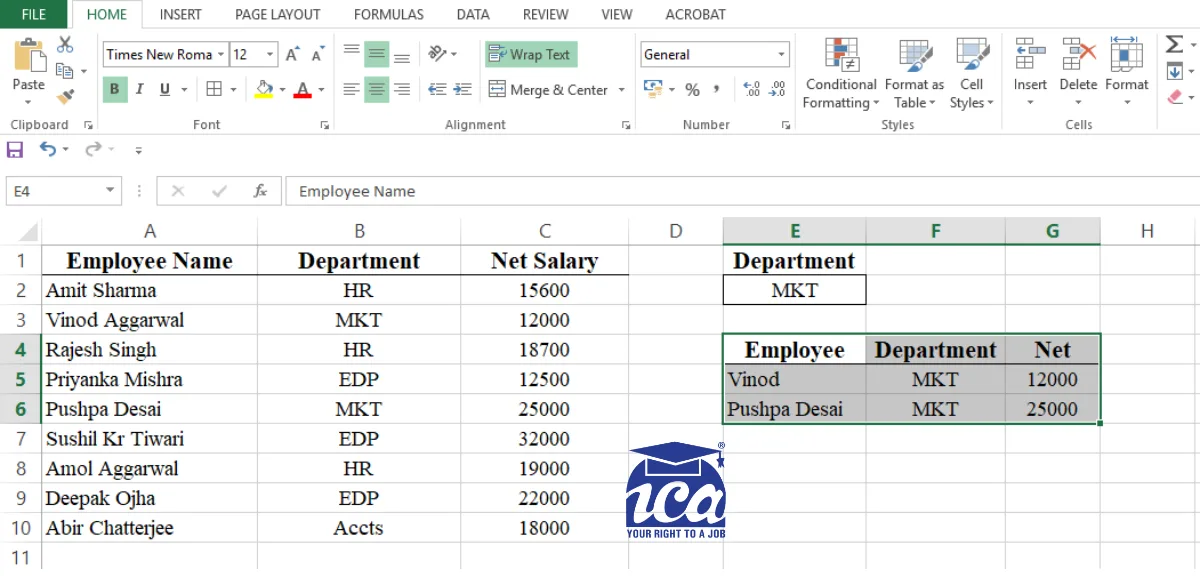
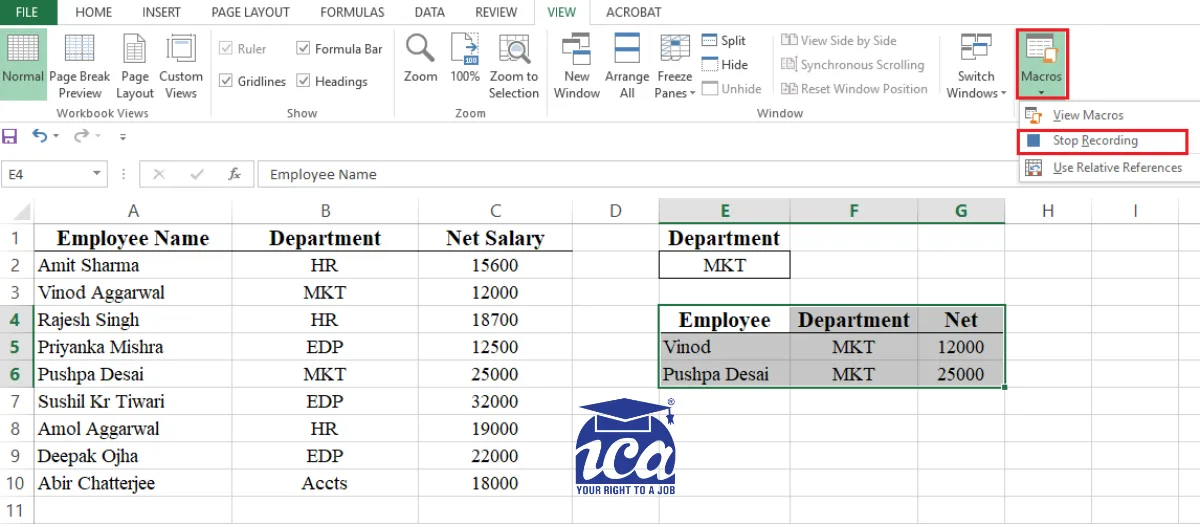
10) Now, go to View Tab → Macros → Click Stop Recording. The advanced filter steps have been recorded in macro.
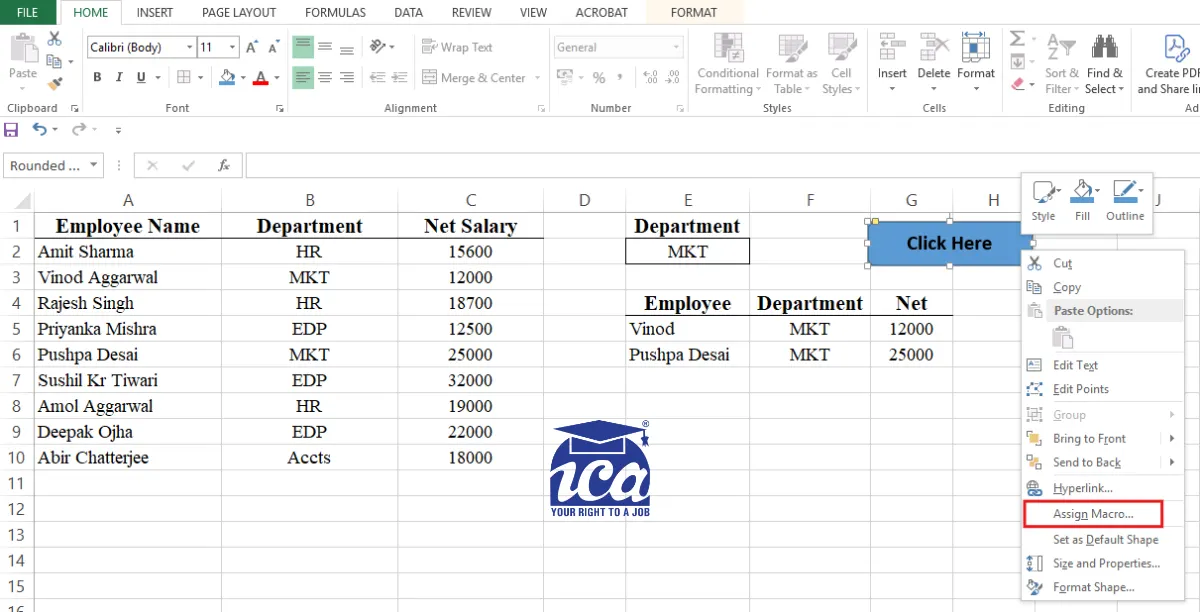
11) To insert an Auto Shape, go to Insert Tab → Shapes → Draw a shape type text and format it properly
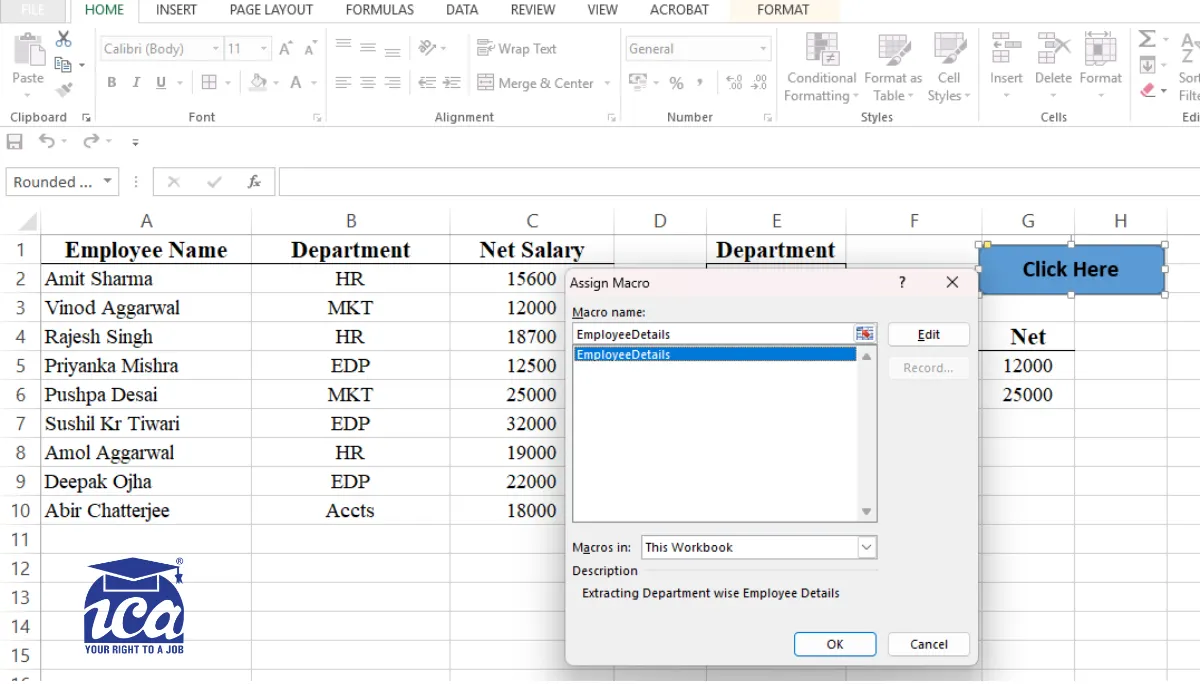
12) Right click on the Shape → Assign Macro → Select the Macro and click on Ok. [Now onwards we need to click on this button to run the Macro instead of pressing any shortcut or run macro from view tab]
13) Click OK button to close Assign Macro dialog box.
14) Change the criteria cell E2 as “HR”
15) Hover the mouse to ‘Click Here’ button and click as soon as the mouse pointer changes to hand sign
16) Finally, the HR Department list gets displayed
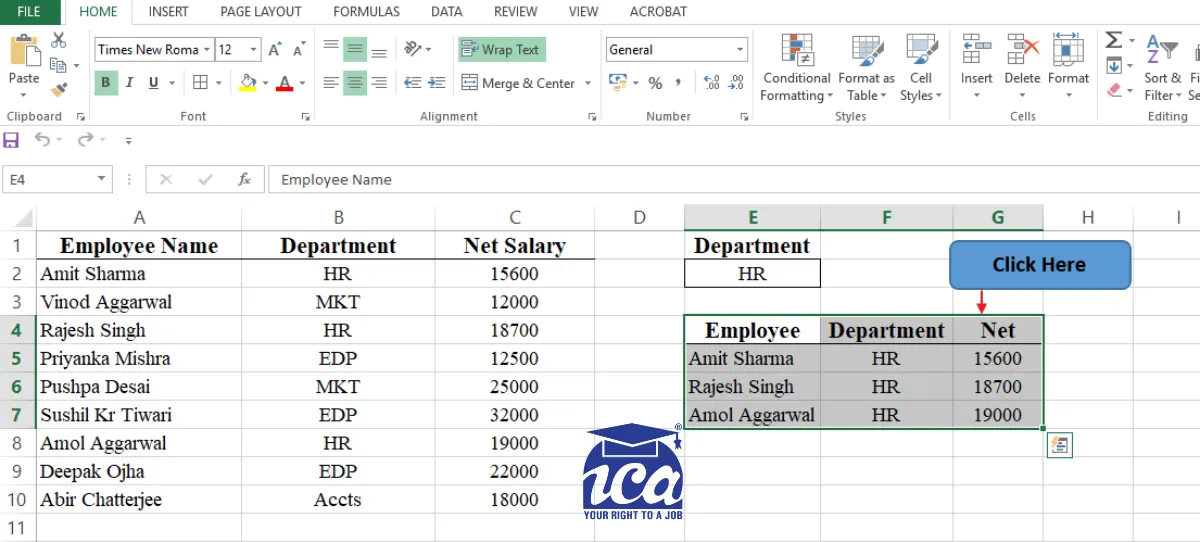
17) Press F12 key or Click on save button to open Save as dialog box. Choose Save as type as Excel Macro-Enabled Workbook
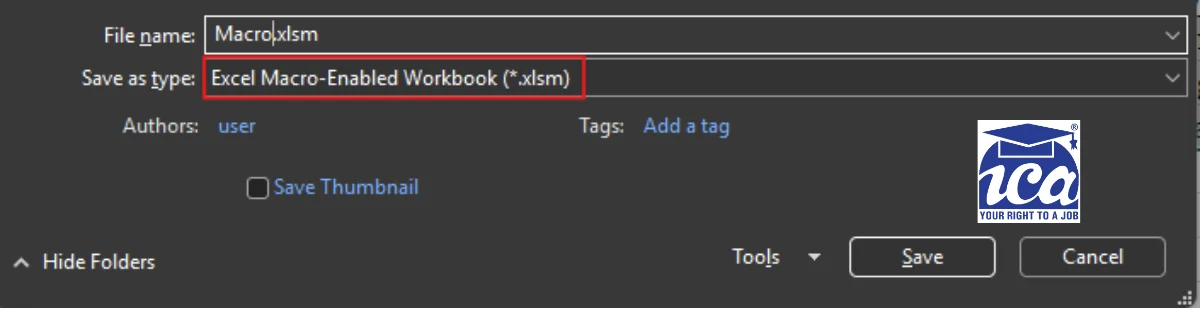
18) Finally click save button
When working with macros in Excel 2021, you save and open workbooks in a new macro-enabled workbook format (.xlsm) that provides added security. When you create a macro, you must use a macro-enabled format to save your workbook or the macro won’t be saved.
What Else Can You Do With Macros?
Once you understand the logic, the applications are endless:
- Auto-generate monthly reports from raw data
- Format 500 rows of data with one click
- Send pre-structured emails through Excel + Outlook
- Automate invoice generation with dynamic data
- Build interactive dashboards with button-driven filters
Macros essentially let you build mini-tools inside Excel tools your entire team can use, even if they don’t know Excel well.
Where Does ICA Edu Skills Come In?
If you’ve read this far, you’re serious about building real, job-ready Excel skills, and that’s exactly what ICA Edu Skills is built for.
The Advanced Excel course at ICA Edu Skills covers:
- Macro recording and editing
- Array formulas and CSE functions
- Advanced filtering and data management
- VLOOKUP, XLOOKUP, INDEX-MATCH
- Pivot Table, Power Query, and many more
What makes ICA different is the practical, example-driven approach. You don’t just read about Macros, you build them on live datasets with step-by-step screenshots and guided practice. The curriculum is designed keeping industry requirements in mind, not just textbook theory.
With centers across India and a strong placement support network, ICA Edu Skills has helped thousands of students land jobs in top companies, including in roles where Advanced Excel is a daily requirement.
Ready to go from Excel beginner to Excel expert?
Take the first real step toward a smarter, faster career with 90% Practical Training and NSDC Certification.
The Bottom Line
Macros in Excel aren’t an “advanced user only” feature anymore. They’re a career skill that separates candidates who get shortlisted from those who don’t.
You don’t need to be a programmer. You don’t need to know VBA from day one. You just need to start recording your first Macro, see it work, and build from there.
Few related topics for your knowledge
- How To Create A Database Design In Excel: Step By Step Guide
- Custom Number Formatting In Excel: Learn Amazing Tricks To Employ
- Excel Lookup And Reference Functions: A Step By Step Guide
- How to Use Python in Excel – Tutorial and Tips
- Master The Visual Basic Editor In Excel
- Flash Fill In Excel: What Is it & Step By Step Tutorial
Frequently Asked Questions
1. What is a Macro in Excel, and what is it used for?
A Macro in Excel is a recorded set of actions that automates repetitive tasks. It’s used to filter data, format reports, and run complex operations with a single click, saving time and reducing manual errors in professional work.
2. Do I need to know coding to create Macros in Excel?
No coding knowledge is required to create basic Macros. Excel’s built-in Macro Recorder captures your actions automatically. However, learning basic VBA helps you edit and customize macros for more advanced automation needs.
3. How do I save an Excel file with a Macro?
Save your file as an Excel Macro-Enabled Workbook with the .xlsm extension. Regular .xlsx files don’t support macros; they’ll be deleted on saving. Use F12 → change Save as type to .xlsm → click Save.
4. Are Macros in Excel useful for getting a job?
Yes. Advanced Excel with Macros is a highly sought-after skill in finance, HR, operations, and data roles. Many MNCs and startups list it as a requirement. It shows employers you can handle data efficiently and build productivity tools.
5. What is the shortcut to run a Macro in Excel?
You can run a Macro using a custom keyboard shortcut assigned during recording (e.g., Ctrl+Shift+P), via View Tab → Macros → Run, or by clicking a Shape/Button you’ve assigned the Macro to inside the spreadsheet.

- Best English Speaking Course: Why Fluency Beats Your Degree - August 21, 2026
- SAP Production Planning Certification: 5 Truths Nobody Tells You - August 14, 2026
- SAP Sales and Distribution Certification: Your Path to a High-Demand SAP SD Career - August 10, 2026