
.jpg)

















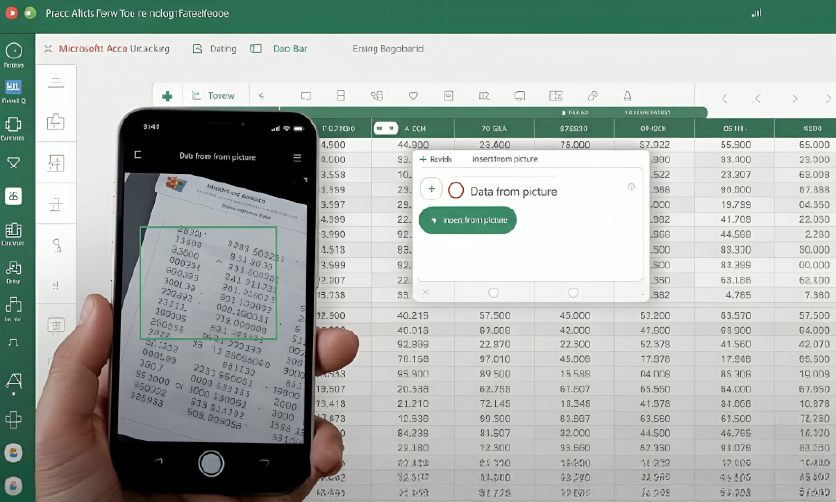
How to import Data from Picture into Excel Spreadsheet







You often receive a scanned page, a screenshot of structured data from a report, or a photo shared over chat. Have you noticed that you receive most information in image format? This is because images are one of the most commonly shared data formats. When you see something useful, you take a screenshot, save it, and share it. It’s that easy!
Images work well for viewing & sharing information, but they become limiting when you need to work with tabular data. In most cases, the data needs to be edited, updated, or reused, which is difficult to do directly from an image.
To perform tasks with real-world documents such as invoices, financial statements, or any image with data records, the data must first need to be converted in an editable format. Without that, you end up manually typing everything into Excel sheets. This process takes time and often leads to errors.
This is where OCR-based tools become useful. OCR technology reads text and numbers from images containing table data. After extraction, the converter organizes the data into a structured, editable format that makes it usable in Excel. In this blog, I’ll share two of the easiest methods to convert your images into Excel spreadsheets.
Table of Contents
Why Importing Data from Pictures Is Useful
The following are a few useful reasons to convert structured images into Excel.
- Saves time compared to typing data by hand
- Reduces typing mistakes in numbers and labels
- Makes image tables editable and searchable
- Helps reuse data for reports and calculations
- Keeps records consistent inside spreadsheets
After converting your image data into Excel, your data becomes easier to manage. Sorting and filtering also become possible.
Methods to Import Data from Picture into Excel
The following are some quick and easy methods to convert images into Excel.
Using Microsoft 365 Excel Version
Microsoft Excel offers a built-in option called “Data from Picture,” which can read and convert structured images to Excel. However, this method is only available in Microsoft 365 Excel and newer supported versions. You need to follow the steps below to use this method:
- Search for “Microsoft 365 Excel” on your web browser, open it, and complete the signup.
- Once you have completed signing up, open Excel.
Click on “Data” from the top menu. In the left corner, select “Get Data”, then open the dropdown menu and choose “Data from Picture”.
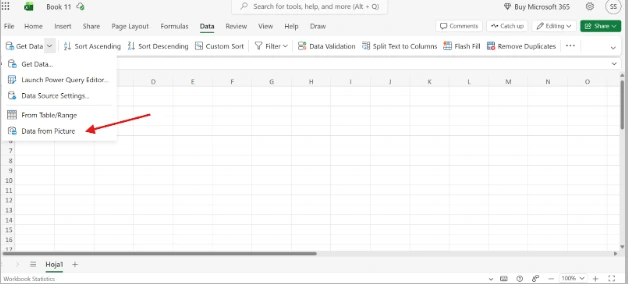
- After that, select the image that you want to convert into Excel.
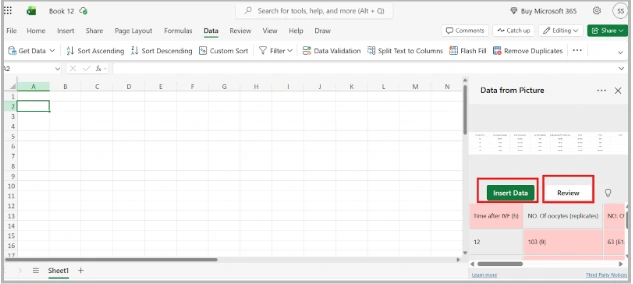
- You can do a quick review of the data by clicking on the “Review” as shown in the image above. If the data is correct and doesn’t require any editing, simply click on the “Insert Data” button.

This is how you can import data from a picture into an Excel spreadsheet by using the Excel online feature. However, some users might find this slightly inconvenient as they have to create a Microsoft 365 account, access Excel online, and locate the feature. This can take extra time, especially when the task is quick or one-time.
In such cases, you can use a more straightforward method, which involves using an online Image to Excel converter to quickly import data into an Excel sheet. Let’s further explain it in the next section.

Using Image to Excel Converter
This is a quick method that uses OCR (Optical Character Recognition) technology for table recognition in images. It then accurately converts and organizes the data into the Excel sheet.
To access this method, open your web browser and search for “JPG to Excel Converter” and select a suitable tool from the search results.
To demonstrate how to use such a tool, I’ve selected JPG to Excel Converter, which I found accurate and consistent during my testing. Also, it doesn’t require you to sign in or to pay for basic conversions. Let’s proceed with the demonstration.
- Open the tool and click on the “Choose File” button to select the image containing tabular data. You can also paste the URL of your image into the tool if it’s hosted online.
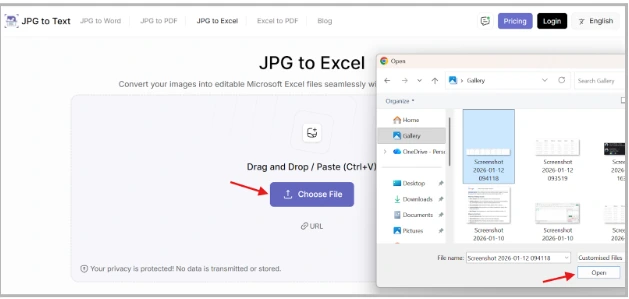
- Once you upload your image to the tool, click on the “Convert Now” button, and your image will be converted into an Excel file in a few seconds.
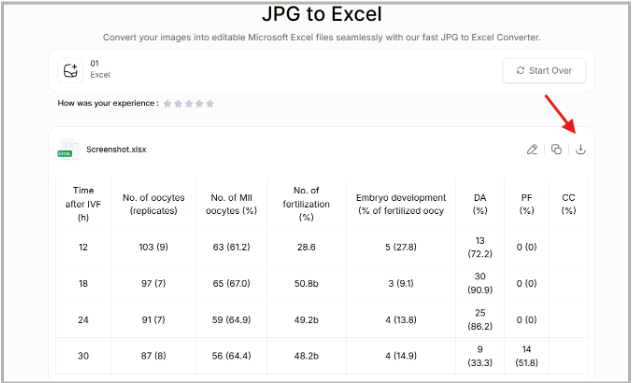
- After that, just do a quick review of the extracted data and edit the information if required. If everything is good to go, click on the “download” button. It will automatically download the Excel file.
This is how you can use an online Excel converter. It is generally simple to use and can give more accurate results, especially when working with scanned images or screenshots.
Few related topics for your knowledge
- How To Create A Database Design In Excel: Step By Step Guide
- Custom Number Formatting In Excel: Learn Amazing Tricks To Employ
- Excel Lookup And Reference Functions: A Step By Step Guide
- How to Use Python in Excel – Tutorial and Tips
- Master The Visual Basic Editor In Excel
- Flash Fill In Excel: What Is it & Step By Step Tutorial
Final Thoughts
Oftentimes, you may find yourself in situations when you need to copy data from an image into an Excel sheet, and you don’t have much time to manually enter everything into Excel. But with the help of the right approach, such tasks can become easier.
There may be various methods to import your data from your image into an Excel spreadsheet. I’ve explained the two easiest ones in the blog above. Both methods serve a clear purpose and fit naturally into different workflows. Sometimes working inside Excel makes sense, while in other cases a quick online conversion is more practical. Both methods help turn image data into structured, editable spreadsheets and make the task easier to complete.

- Top Skill Development Courses After Graduation That Actually Help You Get a Job - April 20, 2026
- Skipping the Consignment Process in SAP MM Could Cost You Your Next SAP Job - April 10, 2026
- No Job After B.Com? What to Do to Get Hired in 2026 - April 3, 2026