.jpg)

















How to Convert PDF Data to Excel Spreadsheet Accurately







If you work in accounts, finance, taxation, banking or enterprise systems such as SAP and ERP, then PDFs are part of your everyday routine. Bank statements, invoices, audit reports, tax filings, and vendor records all come in PDF format.
But when the time comes to analyze that data, upload it into a system, or reconcile figures, it becomes necessary to convert it into a structured format like Excel.
Manual data entry is slow, monotonous and risky. A single misplaced decimal or missed row can spoil an entire report. In financial related positions, even small mistakes can have serious repercussions.
This is why converting the PDF data to Excel accurately is not only a convenience. It is a necessity.
Why PDFs Need to Be Converted into Excel
PDFs are created to maintain layout, not structure. They lock in information as a visual format that appears consistent on every screen but does not react like data. Excel, on the other hand, is based on rows, columns, and formulas. When you manually copy numbers from a PDF to Excel, the structure tends to break.
Tables may break apart. Columns may shift. Headings could end up in the wrong cells. For small documents, this may be manageable. But when you are dealing with multi-page bank statements, tax calculations or ERP-generated reports, the margin for error increases rapidly.
Accurate information is the most important attribute for finance professionals. Speed is important as well, but we should prioritize accuracy. Any process that adds unnecessary risk eventually takes more time than it saves.
Understanding the Type of PDF You are Working with
Before converting any document, it helps to know what type of PDF you have. This step, by itself, can improve your results significantly.
Some PDFs are text-based. These are produced digitally using accounting software, banking portals or ERP systems. These files tend to be easier to convert as the data is already digital.
Other PDFs are scanned documents. These are essentially images of paper records, such as scanned invoices, older tax files or printed statements. In order to convert them, OCR technology is required to identify characters and numbers from images. Accuracy here is very dependent on the clarity of the scan.
Those who treat both kinds the same way often have poor results. Knowing what you are dealing with helps you to choose the right approach.
Why Manual Conversion Often Fails
Many professionals are still using copy-paste methods or spreadsheet importing capabilities. While these methods may work for a single table, they tend to fall apart with real-life financial documents.
Manual conversion has a difficult time with complex layouts, merged cells, inconsistent spacing, and multi-page tables. Currency symbols, negative values, and dates are also trouble spots. The more complicated the document, the more time you waste doing what should have been automatic.
In environments such as taxation, auditing, and preparation of ERP data, these problems compound rapidly. The end result is often a spreadsheet that appears correct at first glance but has concealed errors.
Methods for Converting PDF Data into an Excel Spreadsheet
There are two different methods used to convert PDF Data into an Excel file correctly. Let’s learn both of them through a step-by-step approach.
Through Microsoft Excel
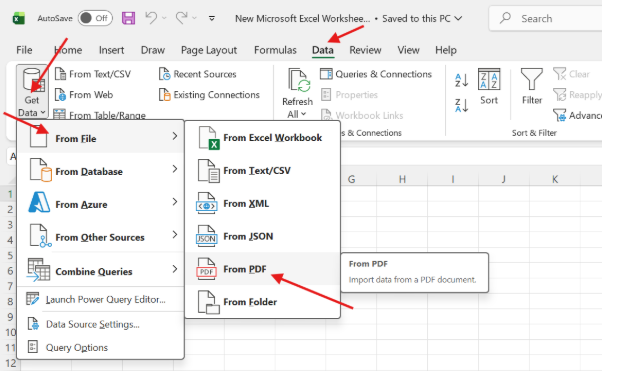
Open Microsoft Excel, and navigate to the “Data” tab on the top ribbon. Select “Get Data” and choose “From File”. Finally, click “From PDF” as shown in the screenshot:
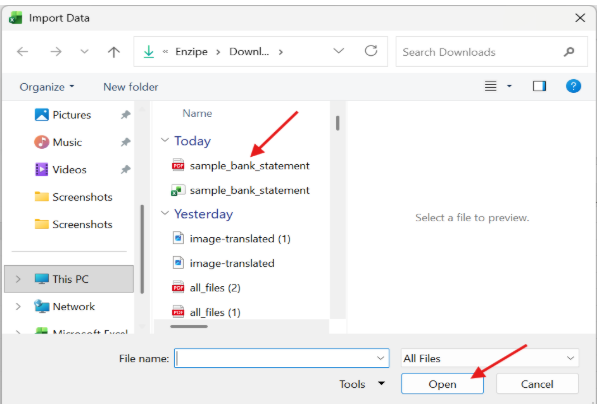
Now, import the PDF file that you want to convert.
Once the PDF is selected, the Navigator Dialog will appear like this:
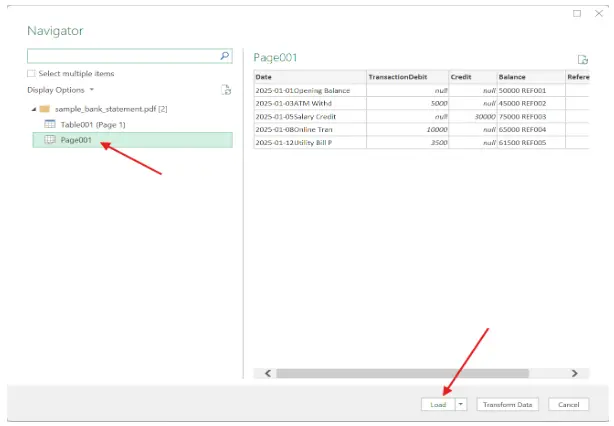
Now, if you want to convert the whole PDF into Excel, then choose the page option from the left, and it will convert the whole PDF page. In case you want to convert just one table, then choose the table option accordingly. Once selected, click on the “Load” button.
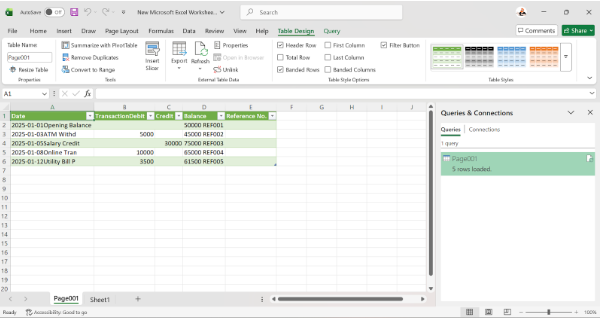
Just like that, you will get your PDF converted into an Excel spreadsheet.
With the Help of a Dedicated Tool
A dedicated PDF to an Excel tool makes a meaningful difference. It focuses on identifying tabular structures and maintaining numerical accuracy. Unlike the above method, it doesn’t involve going through multiple steps.
All you need is to visit the tool to convert PDF to Excel automatically. It involves inserting a PDF into the tool and hitting the “Convert” button, and the tool does the rest.
The following are screenshots displaying the working of one such tool that we found accurate and consistent during our testing.
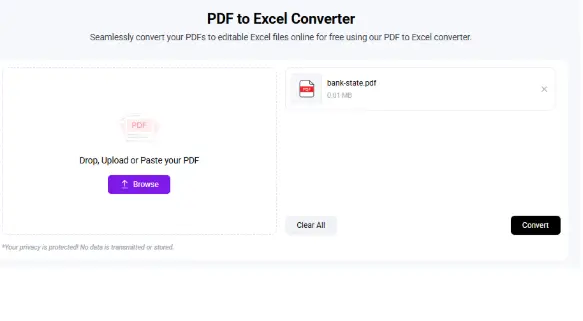

Tools like this allow you to convert PDF to Excel while keeping rows, columns, and values aligned in a way that makes sense for financial analysis. There is no need to install any software or make complex settings, which makes it practical even for busy professionals.
How to Get the Best Results
The conversion process is usually easy enough. What is more important is what you do before and after.
Before uploading, ensure that the document is clear and complete. For scanned files, look at the text to make sure that it is readable and not skewed. Remember a clean input always delivers a clean output.
After conversion, spend a few minutes looking at the spreadsheet. This step is a must, especially for financial data. Compare totals to the original document, scan through key columns, and make sure dates and currencies are connected in the correct manner. This brief review catches most issues at an early stage.
Why Excel Remains Central to Finance Workflows
Despite the fact that newer tools and systems have been invented, Excel remains the backbone of the financial operations. It integrates easily with SAP and ERP systems, can be used for complex calculations, and analysis using pivot tables and formulas.
Once you get your data structured correctly in Excel, everything else is easy. Reporting is faster. Reconciliation is cleaner. Uploading data into other systems becomes a much less stressful task.
The real value is not just saving time in the data entry process, but freeing up mental energy for analysis, making decisions, and solving problems.
Real World Applications Across Roles
Accountants use Excel-ready data in managing ledgers and reconciling transactions. Tax professionals use clean spreadsheets to crunch the numbers and create filings. Banking teams review transaction history and customer records. ERP users are responsible for preparing structured data for uploading and migrations to the system. Auditors rely on using accurate spreadsheets to trace and verify financial activity.
In all of these cases, the quality of the Excel file has a direct impact on the quality of the work that comes out of it.
Final Thoughts
PDFs are not going anywhere, especially in finance-heavy industries where documentation and compliance are critical. But it is no longer practical or safe to rely on manual methods to extract data from them.
With the right approach and the right tools, converting PDF data into Excel can be a reliable, repeatable process rather than an everyday headache. Accuracy improves. Time is saved. And you can focus on what really matters, which is an understanding of the numbers, not messing with them. When your data is right from the beginning, everything down the line works better.

- How to Convert PDF Data to Excel Spreadsheet Accurately - February 9, 2026
- Reconciliation in Accounting: Your Financial Reality Check - February 7, 2026
- Automation in Accounting: The Future You Shouldn’t Miss - January 30, 2026